A navigation menu is a selection of useful destinations, not an inventory of everything stored in WordPress. Begin with the tasks readers are likely to bring: understand a service, browse a subject or contact the site. A short set of clear labels often works better than a menu that exposes the entire administrative structure.
Write the proposed labels before opening the editor. Compare them with the destination pages. A label should describe what a visitor will find, even if it differs slightly from the full page title. Avoid internal department names or clever phrases that only the site's owner understands. The menu has to work without a spoken explanation.
For a small publication, test the menu with two different intentions: finding a known article subject and learning what the site covers. Those tasks may need different routes. Categories can support browsing, while a clear article library or search function can help with a known topic when implemented. Do not add a search-shaped decoration if there is no working search. The navigation should expose the routes the site actually supports, with labels that remain understandable when the reader arrives on a page far from the homepage.
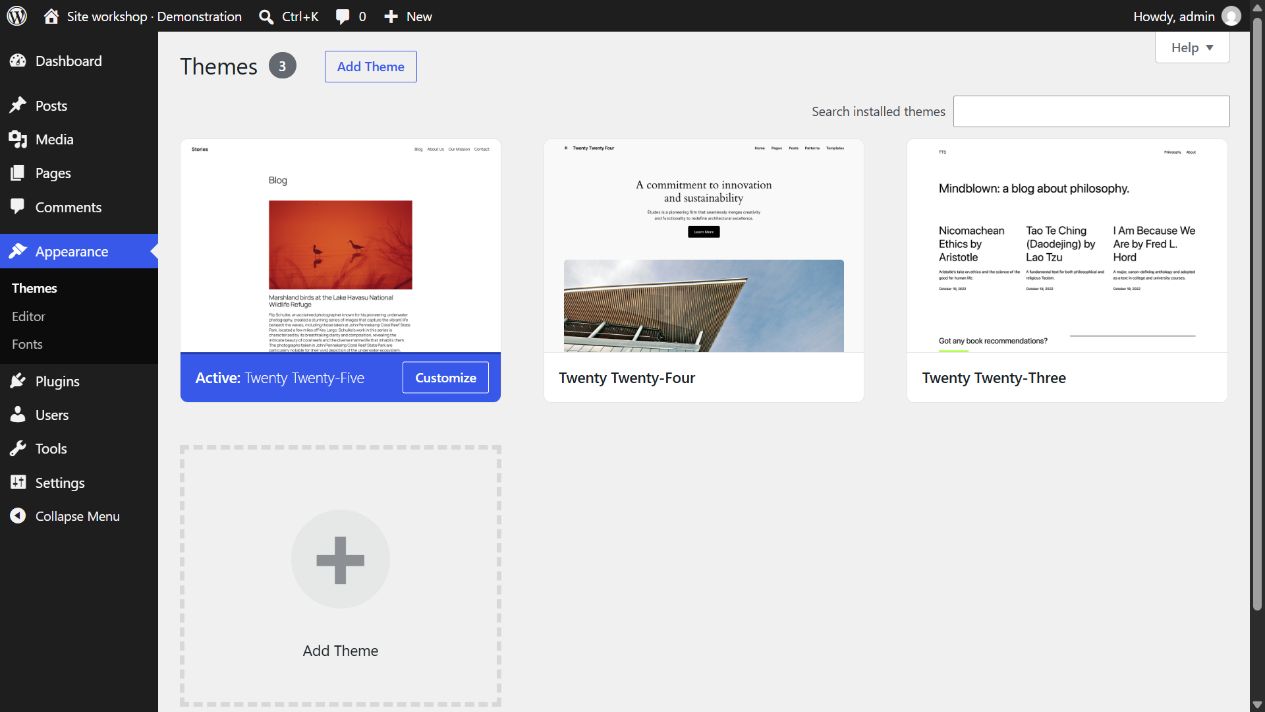
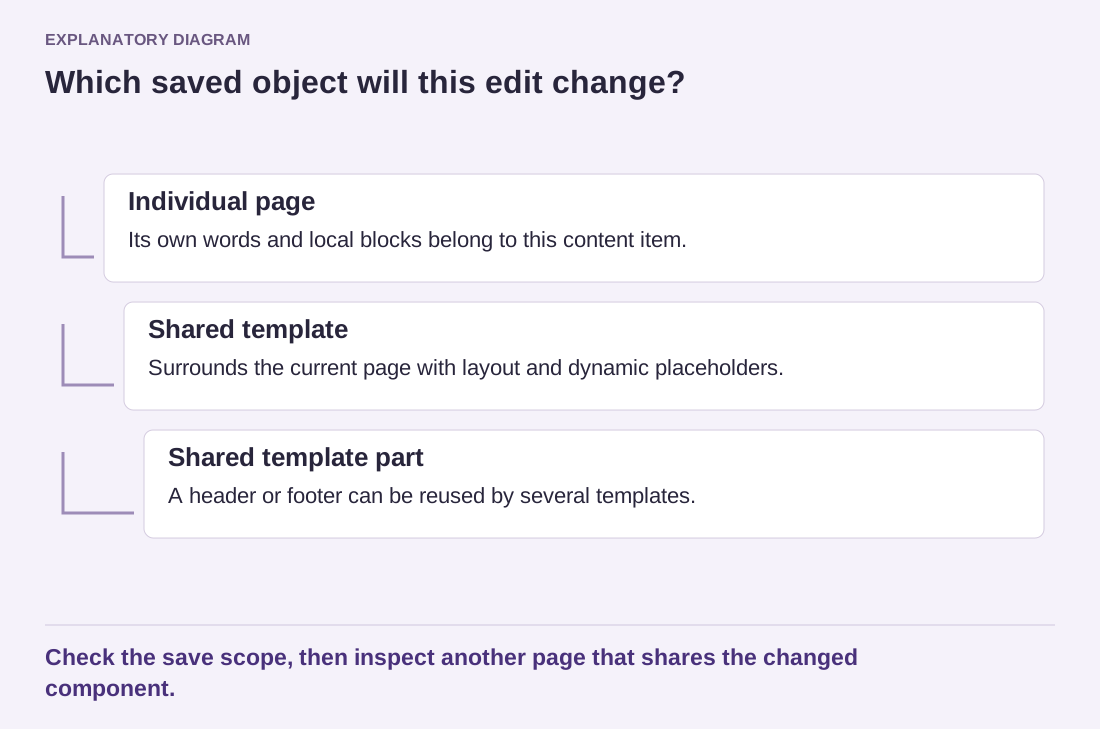
In a block theme, navigation is commonly managed with a Navigation block in a shared header. Classic themes may use a separate menu editor and menu locations. Identify the active arrangement before following instructions. A page hierarchy, an automatic page list and a manually curated menu can behave differently when new pages are added.
Keep the menu and the page separate in your thinking
Removing a navigation item does not necessarily delete its destination page. Editing a label does not necessarily change the page title. Creating a menu link does not guarantee that the target page has useful published content. These distinctions matter when reorganizing a site: check both the menu item and the destination instead of assuming one action handles everything.
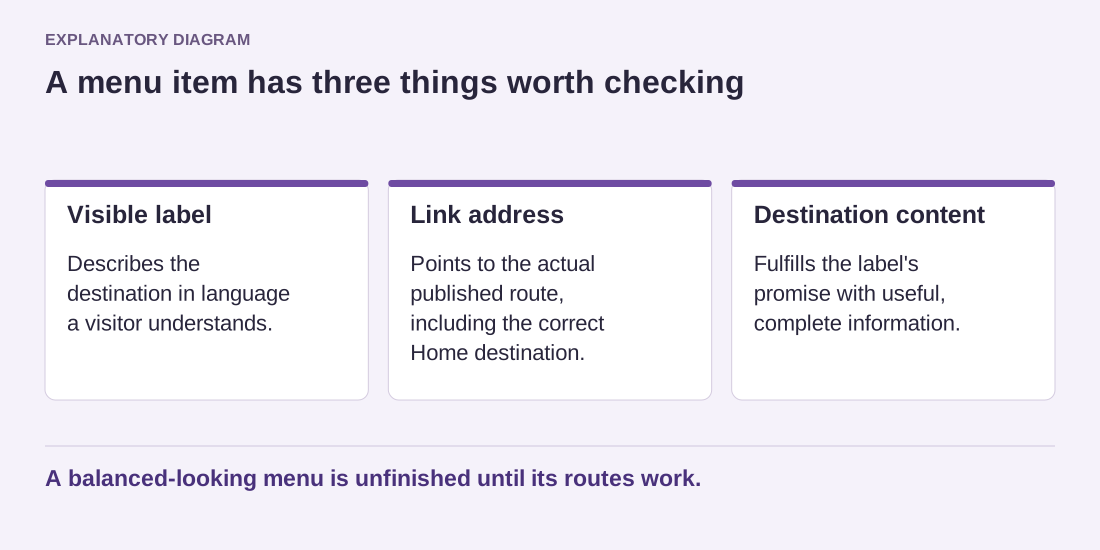
Read the diagram as text
- Visible label: Describes the destination in language a visitor understands.
- Link address: Points to the actual published route, including the correct Home destination.
- Destination content: Fulfills the label's promise with useful, complete information.
A balanced-looking menu is unfinished until its routes work.
Use submenus only when they clarify a meaningful group. A menu with several levels can be difficult to scan and awkward on touch screens. If many subjects need exposure, a clear overview page may work better than a deep dropdown. Visitors can make a first choice there and then explore the detailed collection.
After saving, test the public header on a long page and on a phone. Check the Home link, every main destination and any submenu behavior. Also verify a page using a different template, because it may use another header or navigation instance. A menu is complete when it provides dependable routes throughout the site, not merely when the labels look balanced in the editor.