A hosting installer saves typing, but it still needs decisions from you. Its default values may create a demonstration title, install optional extras or place the site in a subfolder. Take a moment to read the final summary. Correcting an unintended choice before installation is usually easier than untangling it afterward.
Begin with the selected domain and path. Hosting accounts can contain several domains, temporary addresses and existing websites. Confirm that the installer points to the intended location and is not about to overwrite another project. If a directory field contains a name, check how that name changes the resulting public URL.
The site title can be changed later, so it does not need to be a finished slogan. The administrator email deserves more attention. Use an address the responsible person can access reliably. Installation messages and account-related notices may arrive there. Do not use a temporary contractor address simply because that person is filling in the form.
Separate required software from optional additions
Some installers offer themes, page builders, marketing tools or example content. Read which items are preselected and whether any create a paid subscription. You do not need to accept every recommended extra to obtain a working WordPress installation. If an option is unclear, check the provider's explanation before approving it.
Use a unique administrator password and store it through an appropriate password manager. Avoid copying credentials into a shared project checklist or leaving them in screenshots. If someone else is performing the installation, arrange a proper handover rather than continuing indefinitely with a single shared account.
Read the diagram as text
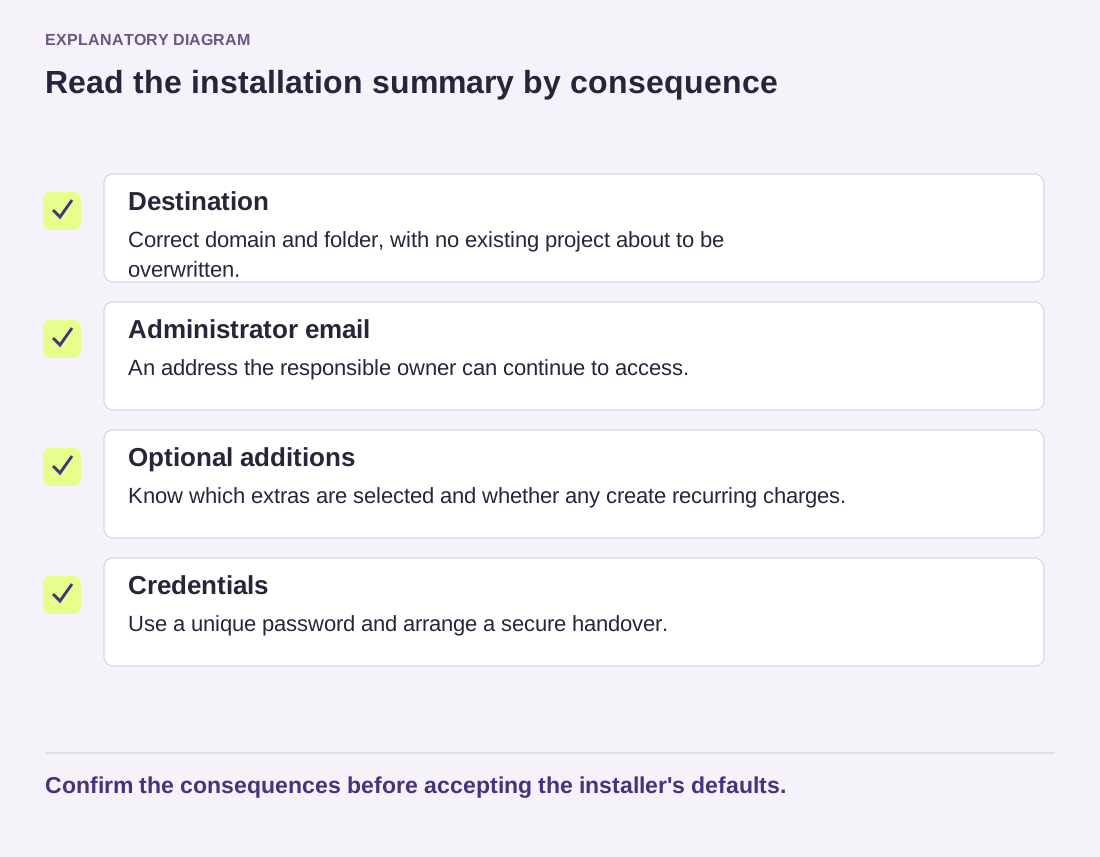
- Destination: Correct domain and folder, with no existing project about to be overwritten.
- Administrator email: An address the responsible owner can continue to access.
- Optional additions: Know which extras are selected and whether any create recurring charges.
- Credentials: Use a unique password and arrange a secure handover.
Confirm the consequences before accepting the installer's defaults.
After completion, open both the public site and the dashboard using the addresses supplied. Confirm the domain, title and initial language. A successful installer message does not show that every public link works or that the chosen theme fits your content. Keep the installation confirmation, note what extras were installed, and then start the content setup. Provider interfaces differ, so follow the labels on your actual screen rather than hunting for a button from an unrelated tutorial.