An image can be set to wide alignment and still remain inside a narrow column. That is not necessarily an image problem. Its available width depends on the surrounding containers and the theme's layout rules. Trace those boundaries before uploading a larger file or adding arbitrary widths to the image itself.
Think of the page as a series of nested boxes. The template provides an outer area, a Group may constrain the article content, and a column may constrain the image further. A child cannot always escape those limits simply because its toolbar offers a wide option. The selected alignment has to work within the structure that contains it.
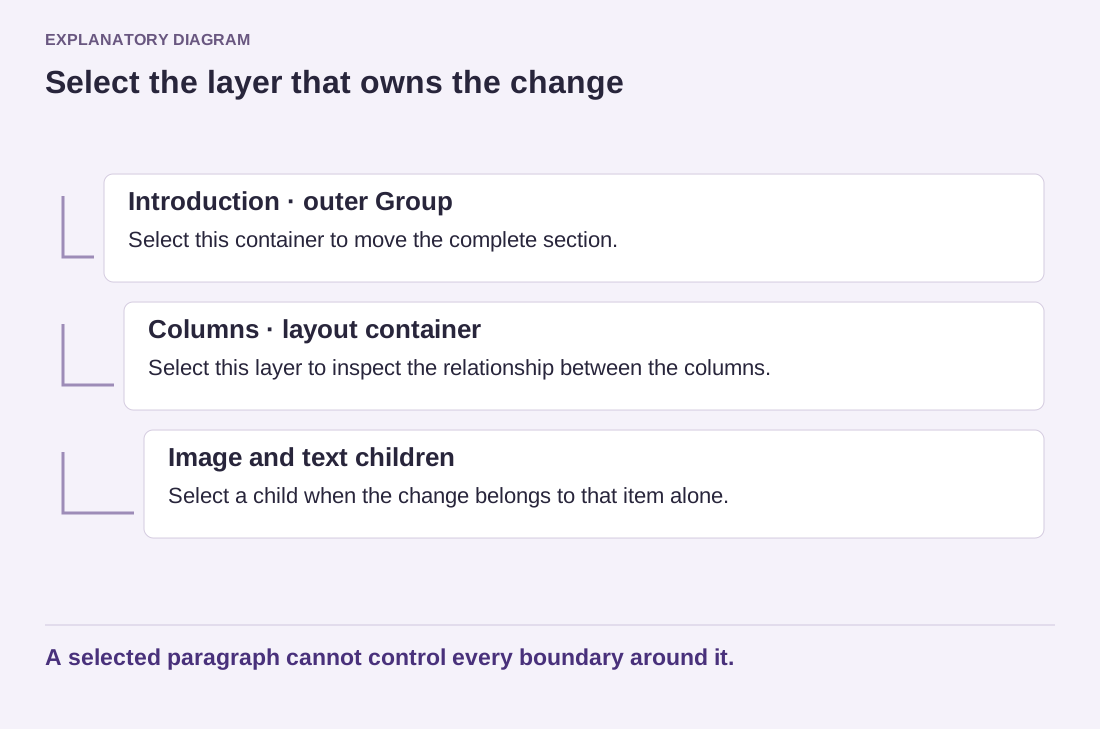
Use List View to identify the image's parents. Select the relevant container and inspect its layout settings. A theme may distinguish ordinary content width from wide width, and some blocks allow inner content to follow those constraints. The exact controls vary, so look for the meaning of the setting rather than an identical position in another site's screenshot.
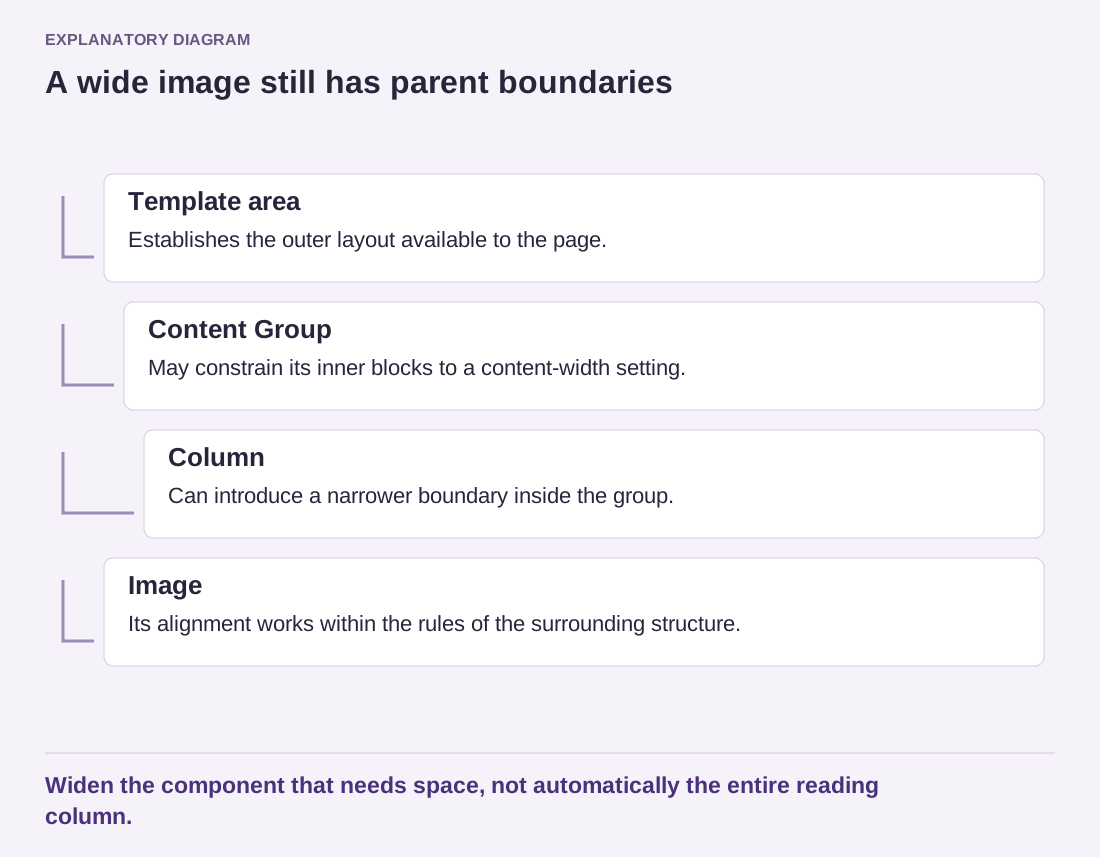
Read the diagram as text
- Template area: Establishes the outer layout available to the page.
- Content Group: May constrain its inner blocks to a content-width setting.
- Column: Can introduce a narrower boundary inside the group.
- Image: Its alignment works within the rules of the surrounding structure.
Widen the component that needs space, not automatically the entire reading column.
Decide what should actually become wider
Perhaps only a photograph needs more space while the article text remains comfortably narrow. In that case, widening the entire text column may solve one problem while creating another. Alternatively, a comparison section might need a wider parent container because several related elements must expand together. Choose the scope before changing values.
Full width is also a design decision, not an automatic improvement. A photograph spanning a large monitor can become excessively tall or lose its subject through cropping. A readable article often benefits from a restrained text measure even when occasional images extend beyond it. Test with the content you intend to publish.
After changing alignment, inspect the widest desktop view and a phone view. Check for horizontal scrolling and uneven edges between neighboring sections. If a layout needs custom CSS to override the theme, keep that change documented and limited to the intended component. Understanding the parent constraints first usually produces a cleaner solution than repeatedly forcing the child block to become larger.