A calendar can display an empty slot without knowing whether your business can honor it. Travel time, shared equipment, staff approval and cleanup between appointments may all affect availability. Write those rules before choosing a booking extension.
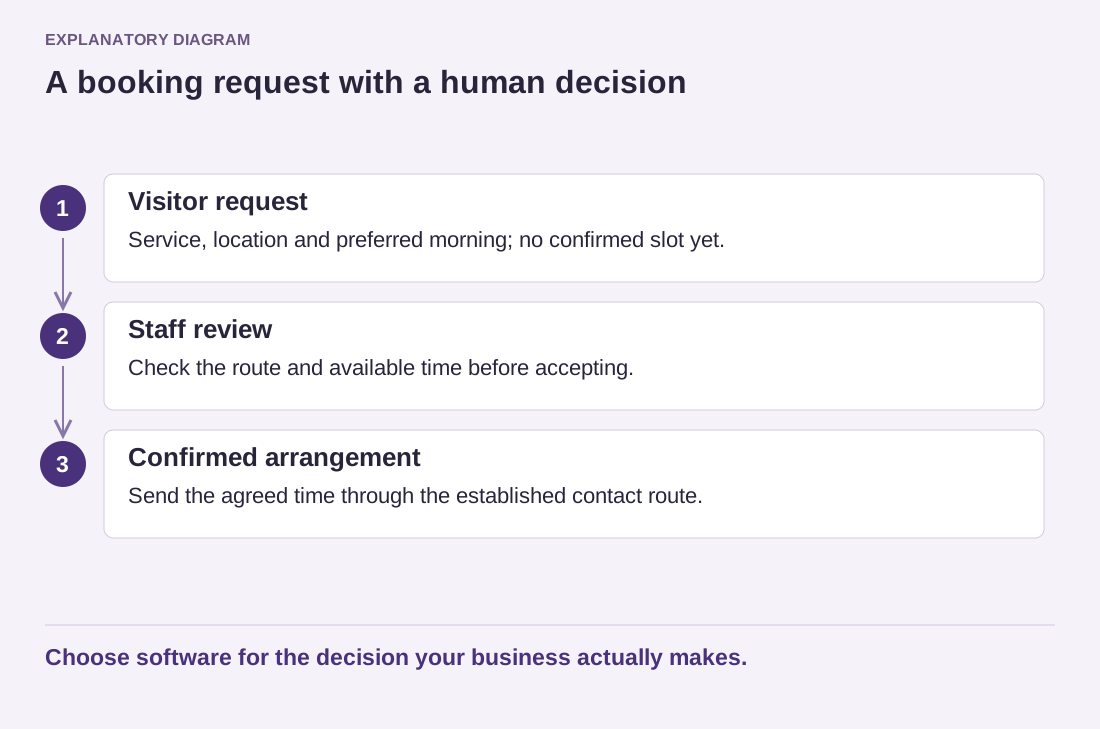
Follow one booking from discovery to completion. A visitor chooses a service, sees an available time, supplies the necessary details and receives either confirmation or a request acknowledgement. The business then needs to see the booking, prepare for it and handle changes. Every step should have an identified owner.
Use a concrete example. A tutor may allow consecutive online sessions but require a break after three. A repair service may need to group appointments by location. A room rental may depend on equipment that another booking already uses. These are different scheduling models, even though all display dates.
Test changes, not only new bookings
Try rescheduling and cancellation in a test environment. Determine what happens to availability, notifications and any payment record. A cancellation email without a released slot leaves the calendar inconsistent. A released slot without a notice can leave staff expecting someone who will not arrive.
Time zones deserve explicit attention when visitors and staff are in different regions. Check what zone the visitor sees, what the confirmation says and what appears in an exported calendar event. Test a date near a daylight-saving change when the service operates across regions that observe different rules.
If payment is involved, separate a pending booking from a paid or confirmed one according to the chosen system. Use its supported test mode. Do not treat a button click or a browser return page as proof that payment succeeded.
For a two-room studio, test a booking that needs the same portable projector as another booking. If the plugin models only rooms, it may allow both reservations even though the shared resource is unavailable. The solution could be a resource feature, a manual approval step or a simpler booking policy. Decide which is acceptable before choosing the software. Then test the cancellation of one reservation to ensure that the resource becomes available at the correct time, without releasing the other room or its booking by mistake.
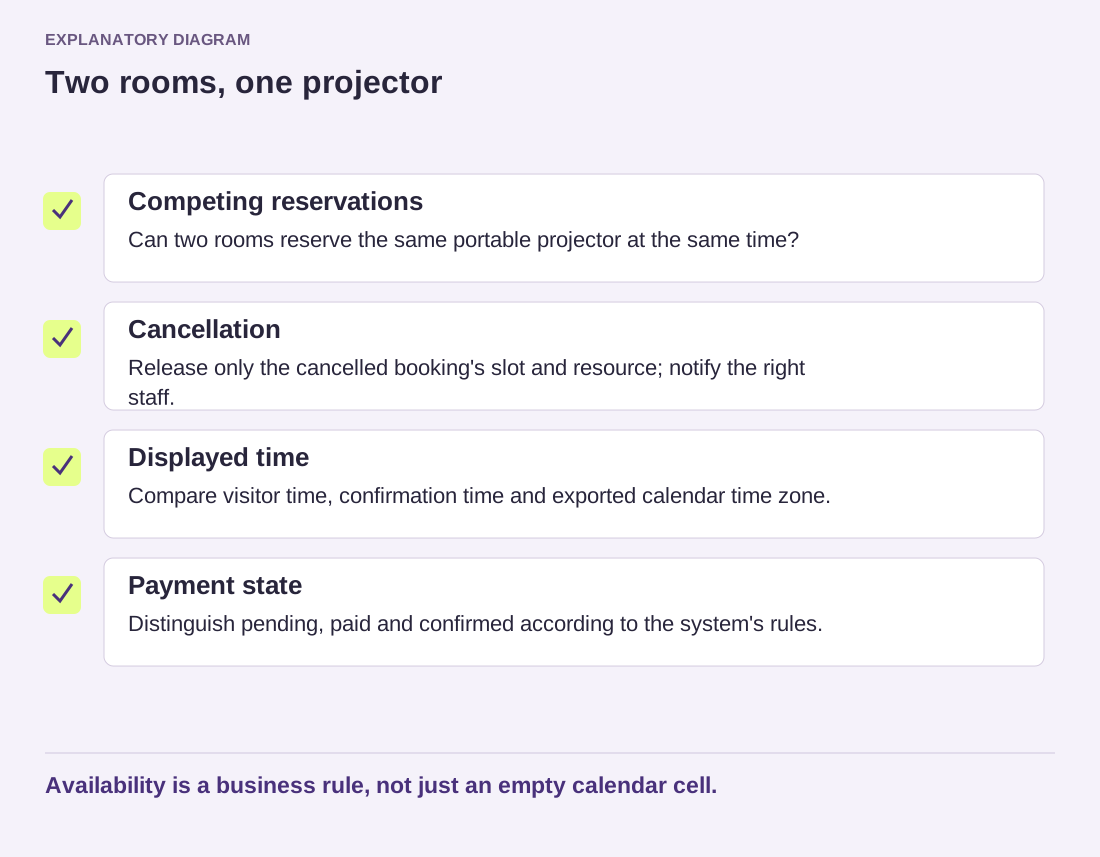
Read the diagram as text
- Competing reservations: Can two rooms reserve the same portable projector at the same time?
- Cancellation: Release only the cancelled booking's slot and resource; notify the right staff.
- Displayed time: Compare visitor time, confirmation time and exported calendar time zone.
- Payment state: Distinguish pending, paid and confirmed according to the system's rules.
Availability is a business rule, not just an empty calendar cell.
Before launch, decide who reviews failed notifications, expired connections and exceptional requests. Keep a manual contact route for cases the calendar cannot represent. The extension should implement the business's scheduling rules; it should not quietly invent rules that staff discover only after a customer has relied on them.