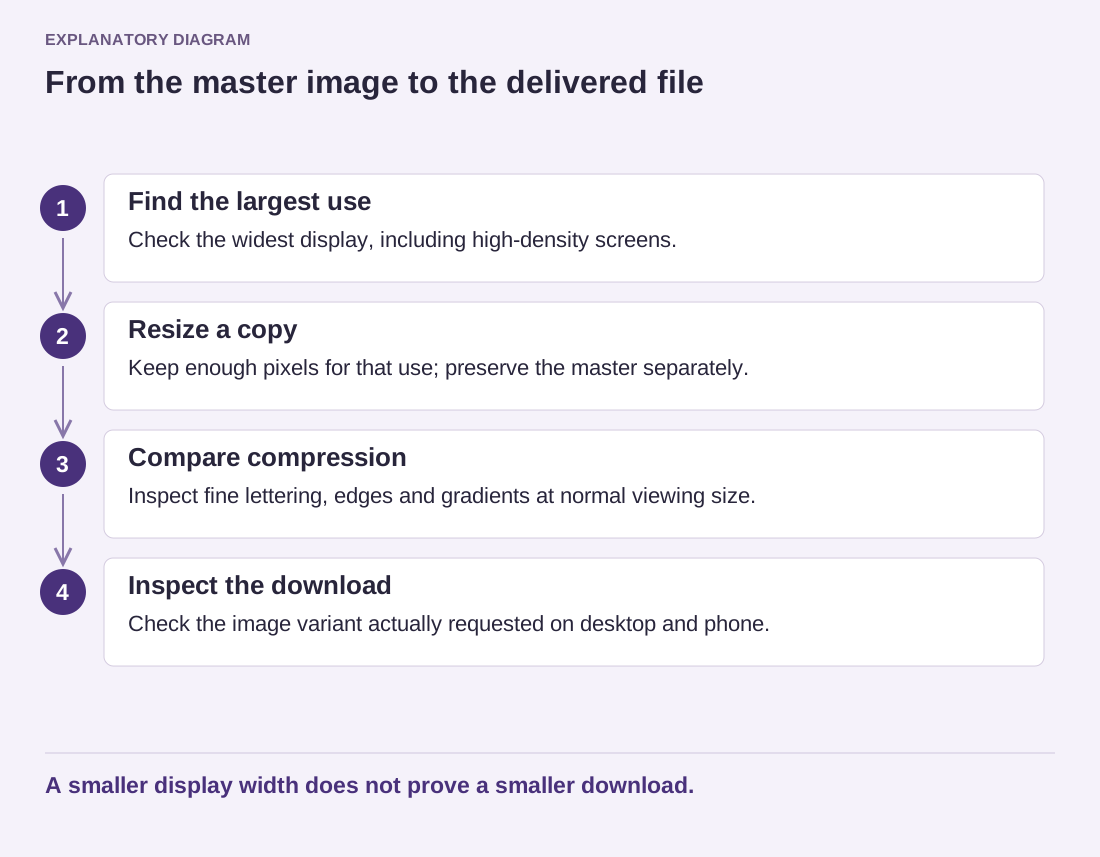
An image can have several useful versions without every visitor downloading all of them. Responsive image markup gives the browser candidates and information about their intended display. The browser can then choose a suitable resource for the current circumstances. Checking that choice is more informative than assuming a small screen always receives the smallest file.
In ordinary WordPress media workflows, generated image sizes and responsive markup often handle much of this work. A custom theme, a background image, a page builder or an image delivery service can change the result. Inspect the public page instead of treating the media-library attachment screen as proof of delivery.
Compare the visible slot and the selected file
Choose one image and note its displayed width at a relevant viewport. Use browser inspection to identify the resource actually selected, including its address and dimensions. In the network panel, distinguish a fresh transfer from a reused cached resource. Changing a browser window after a large image has already loaded does not necessarily make the browser download a smaller replacement.
For a more useful comparison, repeat a fresh page load under the intended conditions. Check a phone layout and a desktop layout separately. High-density displays may reasonably choose more pixels than the CSS width alone suggests. The question is whether the choice is appropriate, not whether its dimensions exactly equal a visible measurement.
Investigate a mismatch at its source
Suppose a card occupies a narrow column, but the browser consistently selects a much larger photograph. The available candidates may be incomplete, or the size information may describe a wider slot than the layout actually uses. Compressing the largest original again will not necessarily correct that mismatch. Ask the theme or component maintainer to examine how the image is requested.
The opposite problem matters too. A large feature image may be served from a small candidate and look soft. Avoid repairing that by replacing every thumbnail with the full original. Fix the context where the wrong resource is chosen and preserve the smaller options for places that need them.
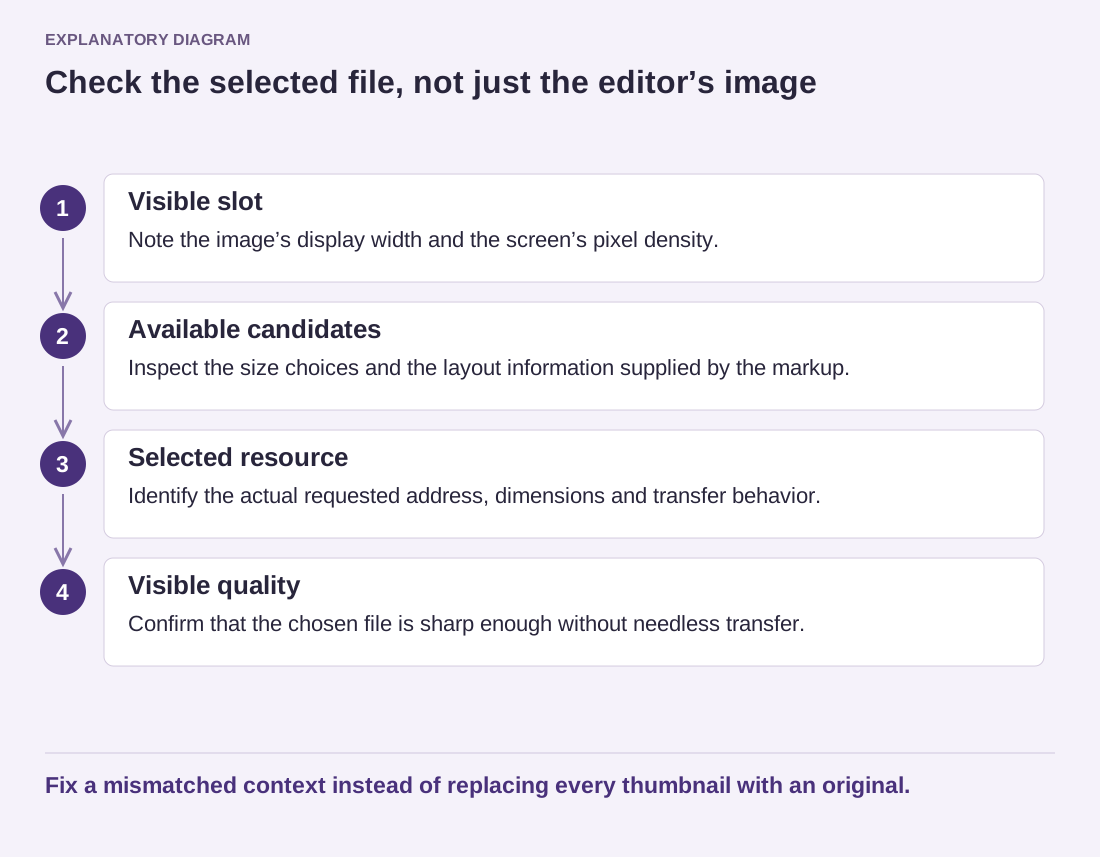
Read the diagram as text
- Visible slot: Note the image’s display width and the screen’s pixel density.
- Available candidates: Inspect the size choices and the layout information supplied by the markup.
- Selected resource: Identify the actual requested address, dimensions and transfer behavior.
- Visible quality: Confirm that the chosen file is sharp enough without needless transfer.
Fix a mismatched context instead of replacing every thumbnail with an original.
After a theme change, check old media as well as newly uploaded images. Newly required sizes may not already exist for older uploads. Any regeneration process should follow the tool's instructions and be preceded by a recoverable backup, especially on a large library.
Keep the result in plain terms: which image, which layout, which file and whether it looks right. That small record helps separate a delivery problem from an image-quality problem without turning the entire media library into an experiment.