You change a heading, publish it and still see the old words. The urge to press every available purge button is understandable. A more useful first step is to confirm that the intended page was actually published, then identify where an older response might remain.
The editor, the origin server, an edge service and your browser are different places in the delivery path. A cache-clearing button in one place may not affect the others. Some hosting integrations coordinate them; others expect separate actions. Use the documentation for the actual setup rather than assuming every button means the same thing.
Begin near the source of the changed content
Check the published version and the relevant template assignment. If the origin page cache contains old output, rebuilding only an outer cache can allow it to fetch that old output again. Where the layers are independent, refresh the source-side cached response before the outer layer that copies it. A managed service may provide a single coordinated operation instead.
Then inspect the public result as a visitor. A private window can help distinguish your usual browser state, although it does not bypass every server or CDN cache. If a stylesheet or image is the stale item, examine its resource address as well as the page address. Clearing HTML will not necessarily replace a separately cached asset.
Imagine updating a featured image that appears in an article and in a category listing. The article may refresh while the category still carries its previous image reference. Check both addresses. This is why a cache's publishing integration matters: changed content can affect more than the page where you pressed Update.
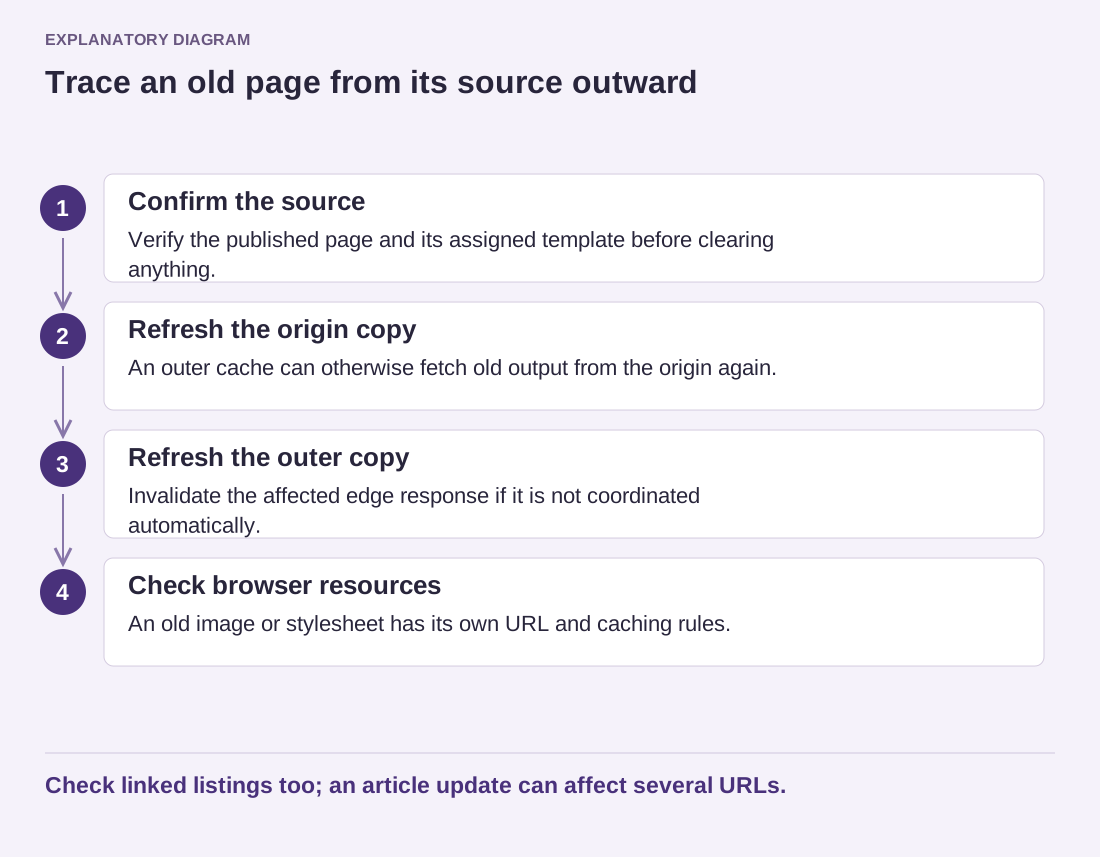
Read the diagram as text
- Confirm the source: Verify the published page and its assigned template before clearing anything.
- Refresh the origin copy: An outer cache can otherwise fetch old output from the origin again.
- Refresh the outer copy: Invalidate the affected edge response if it is not coordinated automatically.
- Check browser resources: An old image or stylesheet has its own URL and caching rules.
Check linked listings too; an article update can affect several URLs.
Use a narrow purge when the setup supports it
Refreshing a single affected address can be preferable to discarding every stored page. A complete purge forces more requests to rebuild content and can temporarily increase work at the origin. The right scope depends on what changed; a shared template update may genuinely affect many pages.
Record which action resolved the stale content. That observation gives the next editor a repeatable procedure and may reveal an integration that needs attention. If every normal publication requires a complicated manual sequence, ask the maintainer whether invalidation is configured correctly.
Finally, remove temporary diagnostic changes and verify the intended content without relying on special browser settings. A successful purge should restore normal delivery, not leave caching disabled indefinitely or require readers to follow a special reload ritual.