An “Allowed memory size exhausted” message identifies a request that could not obtain more memory within its effective limit. The number matters, but so does the task. Processing a large photograph, generating an export and opening an ordinary page can put very different demands on the same installation.
Keep the complete error privately, along with the time and the operation that produced it. The file named in the message is where the failed allocation was reported, not necessarily where the underlying problem began. A core file can be the last stop for work initiated by a plugin. Avoid replacing that file merely because its name appears in the log.
Start with the size of the job
If a bulk export fails, try a smaller, representative selection on a test copy. If a media operation fails, compare a normal image with the unusually large original. These are diagnostic comparisons, not excuses to discard required content. A reliable small-job success suggests that workload size deserves attention; even the smallest job failing points the investigation elsewhere.
For example, an export of recent records may succeed while an unrestricted export fails. Record the filters and approximate record counts for both. Ask whether the exporting tool supports batches or another delivery method. Raising the allowance without changing the job may only postpone the same failure as the database grows.
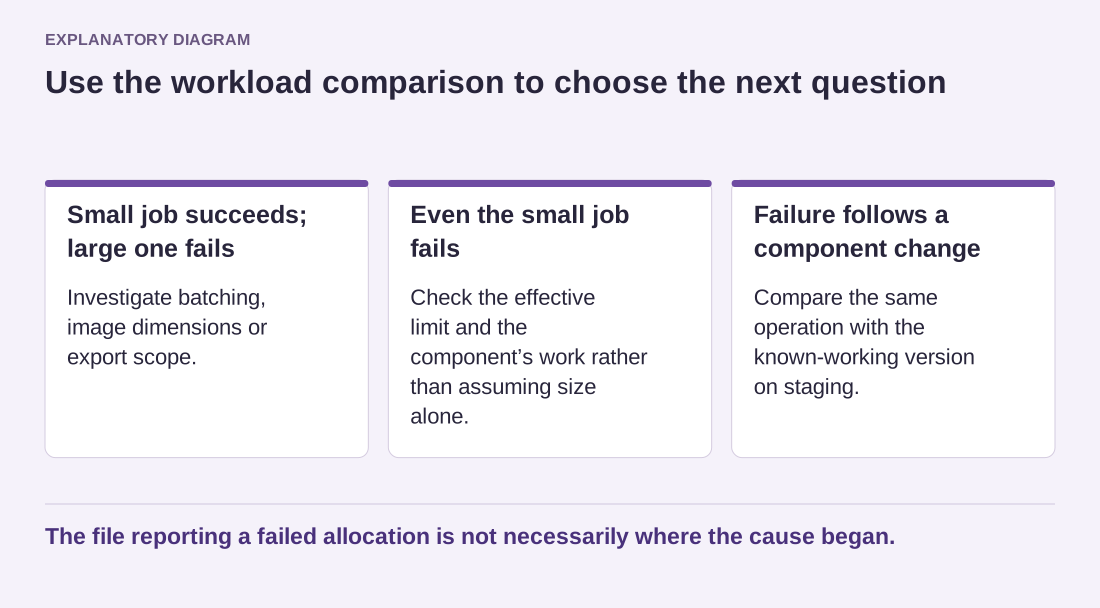
Read the diagram as text
- Small job succeeds; large one fails: Investigate batching, image dimensions or export scope.
- Even the small job fails: Check the effective limit and the component’s work rather than assuming size alone.
- Failure follows a component change: Compare the same operation with the known-working version on staging.
The file reporting a failed allocation is not necessarily where the cause began.
Check who controls the effective limit
WordPress memory settings and the hosting environment both matter. A value written in a configuration file does not guarantee that the server permits it. Ask the host which limit applied to the failing request, whether it differs for administration tasks, and whether the account has other resource restrictions. This is more precise than repeatedly copying larger numbers from unrelated tutorials.
An increase can be reasonable when a legitimate, bounded task needs more room and the host can provide it. Make the change deliberately, then repeat the original task and observe the result. Do not describe an increase as a confirmed fix if you have not checked what consumed the memory. A runaway process can exhaust a much larger allowance too.
If the problem began after a plugin or custom-code change, compare that operation in staging with the previous known-working setup. Include the component versions and error when asking its maintainer for help. Keep error details away from public pages: visitors need a functioning service, not internal server paths. The eventual resolution should explain both the acceptable workload and the limit that supports it.