Site Health is a starting point for maintenance, not a certificate that every feature works. Open it under Tools in an administrator account and let the checks finish. Read the explanation attached to a finding before searching for a command to remove it.
The screen distinguishes critical issues from recommended improvements, and plugins or themes can contribute checks. Keep the exact finding and the component that reported it. A message from one plugin may require different follow-up from a core check, even if both appear in the same list.
Ask three questions about each item: what behavior could it affect, who controls the setting, and what evidence would show that the issue is resolved? An unsupported server component belongs in a conversation with the host. A failed connection used by the editor may require checking that connection and its error. Installing another plugin is not automatically the answer to either problem.
Translate the finding into a small task
Suppose the screen reports a problem with scheduled work. The next task is to establish whether a due event failed, what the event was and how scheduling is configured. It is not to change unrelated caching settings until the notice goes away. Attach the relevant timing and symptom to the maintenance note so the person investigating knows what matters.
Some recommendations involve a tradeoff or a hosting feature that is managed outside WordPress. Ask the provider to explain its arrangement and confirm the actual effect. Keep that explanation with the finding rather than repeatedly applying a generic fix. A recommendation you cannot implement yourself still needs an owner and a decision; ignoring it indefinitely is not a resolution.
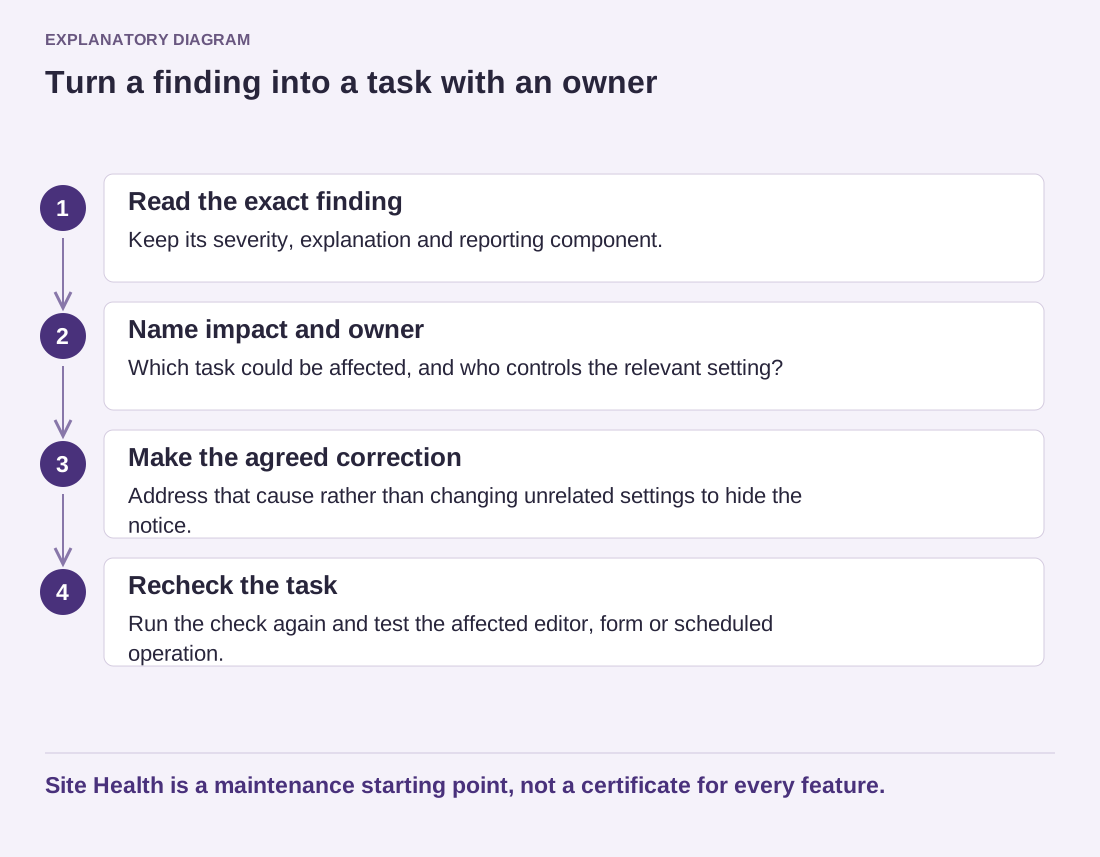
Read the diagram as text
- Read the exact finding: Keep its severity, explanation and reporting component.
- Name impact and owner: Which task could be affected, and who controls the relevant setting?
- Make the agreed correction: Address that cause rather than changing unrelated settings to hide the notice.
- Recheck the task: Run the check again and test the affected editor, form or scheduled operation.
Site Health is a maintenance starting point, not a certificate for every feature.
Recheck the behavior after the change
Run the check again after an agreed correction, then test the affected task. A form should still submit, the editor should still save and scheduled work should run according to the site's arrangement. These are separate observations. A status message disappearing is useful, but it does not prove the whole visitor journey remains intact.
Share only the diagnostic information needed for support. Environment reports can contain details about installed components and server configuration; review them before posting publicly. Keep a brief record of the finding, action, responsible person and result. Over time that record becomes a useful account of the site's maintenance decisions instead of a collection of unexplained green checkmarks.